Your account
Two-step verification
Every Kvendra Cloud account uses two-step verification. When you sign in, you enter your password and then a 6-digit code from an authenticator app on your phone.
Set it up when you create your account
-
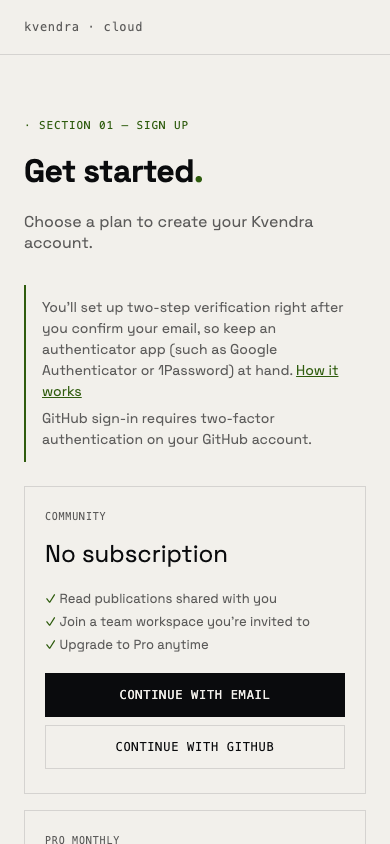
Choose a plan. Go to Sign up, pick a plan and select Continue with email.
-
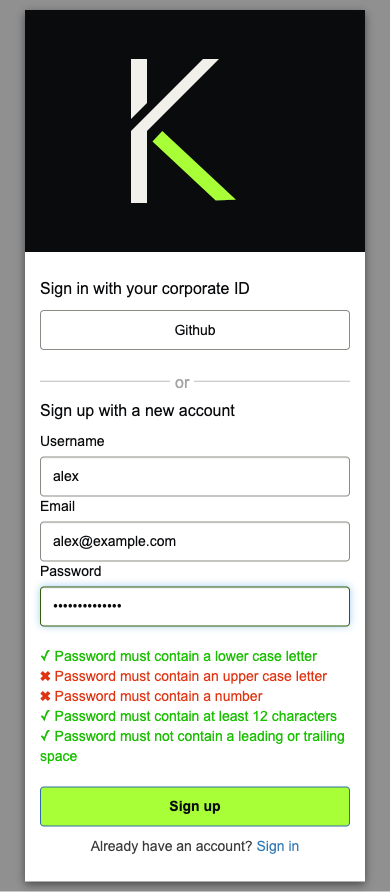
Create your account. Enter a username, your email and a password.
-
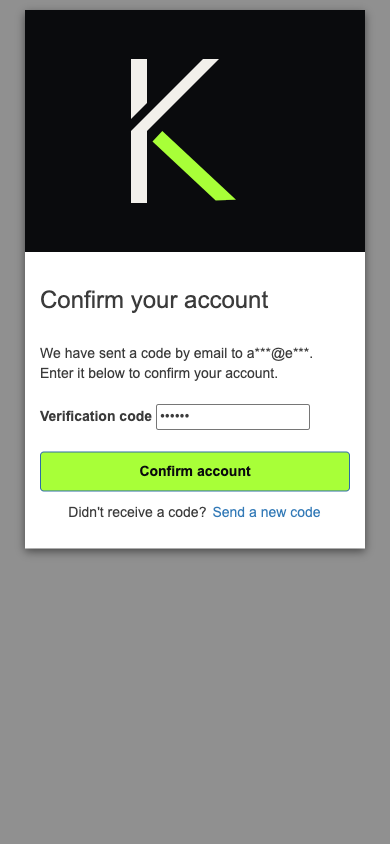
Confirm your email. We email you a code. Enter it and confirm your account.
-
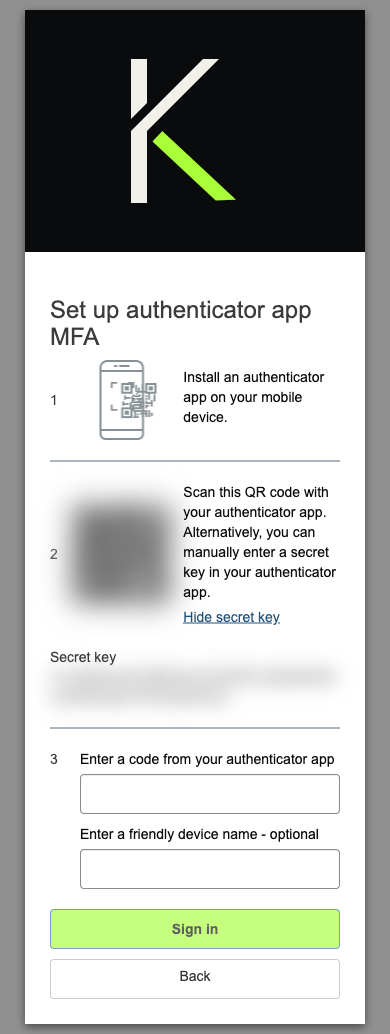
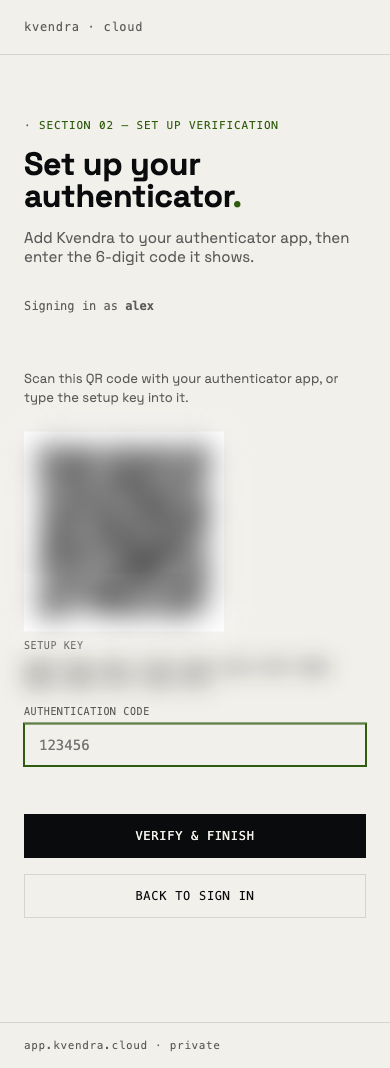
Add Kvendra to your authenticator app. The next screen asks you to set up an authenticator app. In your app, scan the QR code.
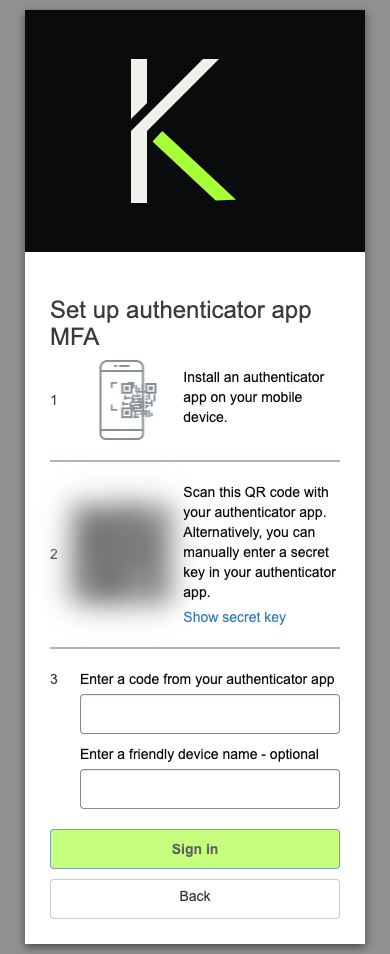
Can't scan it? Select Show secret key and type the key into your app instead.
-
Enter your first code. Type the 6-digit code your app shows for Kvendra. You can give the device a name if you like. Select Sign in.
Keep your phone: you'll need the app every time you sign in.
That's it: two-step verification is on.
Sign in with your code
-
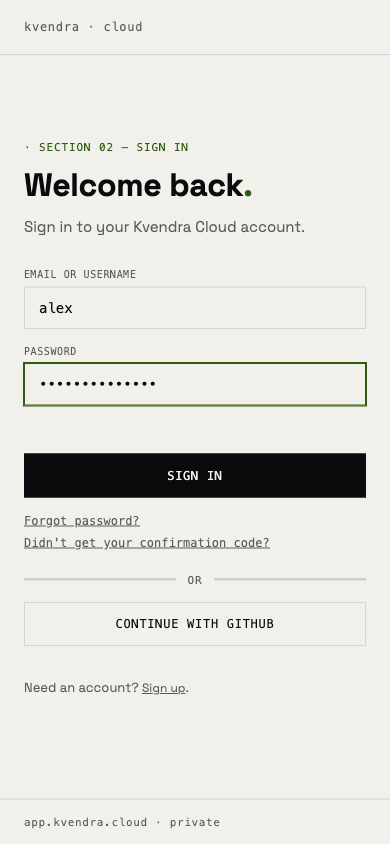
Go to Sign in and enter your email or username and your password.
-
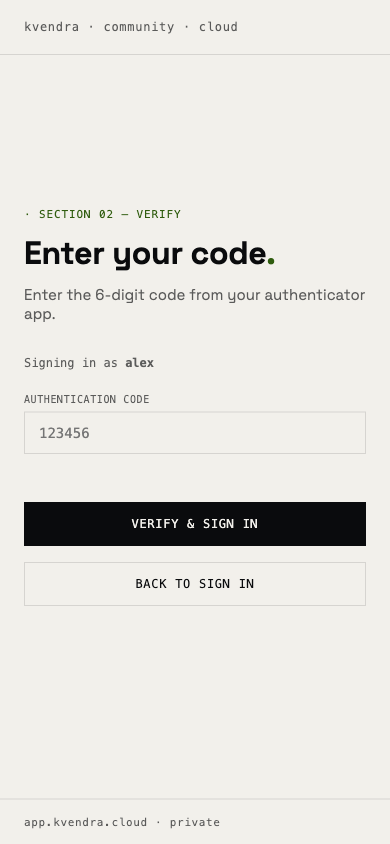
Open your authenticator app and enter the 6-digit code for Kvendra. Select Verify & sign in.
-
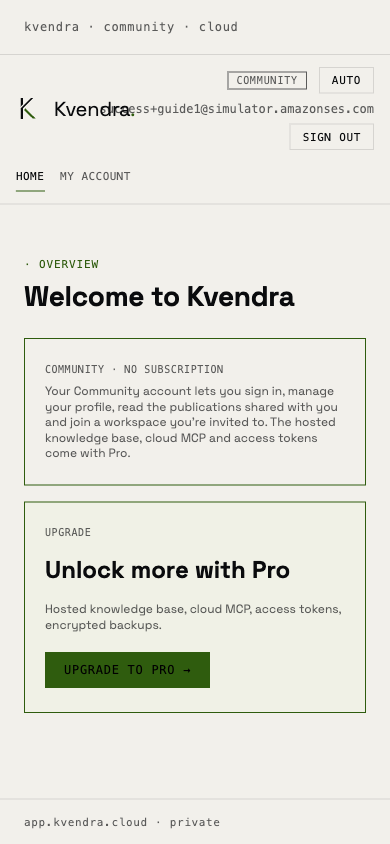
You're in.
Codes change every 30 seconds. If a code is rejected, wait for the next one and try again.
If you didn't finish the setup
If you closed the window before adding the app, Kvendra asks you to finish the next time you sign in. Scan the QR code or type the setup key, enter the code and select Verify & finish.
Signing in with GitHub
GitHub sign-in requires two-factor authentication on your GitHub account. Turn it on in your GitHub settings first; otherwise GitHub sign-in is refused.
Export your data
You can download a copy of your whole knowledge base at any time, also after your Pro plan ends, while your account is read-only.
- Sign in and open My account.
- In Export your data, select Export your data.
- Wait while the export is prepared. It usually takes less than a minute. Keep the page open: the file downloads when it is ready.
The file is a compressed archive (.tar.gz) with your entities, their relations, the change history
and your uploaded files. If your uploaded files add up to more than 4 MB, the archive lists them without their
content; contact us to get them.
In a team workspace, only owners and admins can export, and My account shows which workspace is exported. If the export is too large to download from My account, contact us at support@kvendra.ai.
Export your data after closing your account
If your account is closed and you can no longer sign in, you can still ask for an export of your data for up to 2 years after the account was closed.
- Email support@kvendra.ai from the email address of your Kvendra account.
- We send a download link to that same address. We deliver it within 24 hours during the first 30 days after closure, and within 7 days after that.
- The link is personal, works once and expires after 72 hours. If it expires, ask for a new one.
We only send the export to the email address of the account, even if you write from another address. For a team workspace, we send it to the workspace's last owner.
Two years after closure your data is permanently deleted and you can no longer request an export.